Ever followed a tutorial and realized… you don't own the same colors?
Maybe the instructor uses Faber-Castell Polychromos, and you have Prismacolor. Or they mention exact color names that don't exist in your set.
This is one of the biggest hidden frustrations for artists — and it usually leads to guessing, second-guessing, or giving up halfway.
Let's fix that.
Option 1: Start with a Color or Hex Code
If you already know the color (from a palette, Pinterest, or digital design), you can start directly with a hex code.
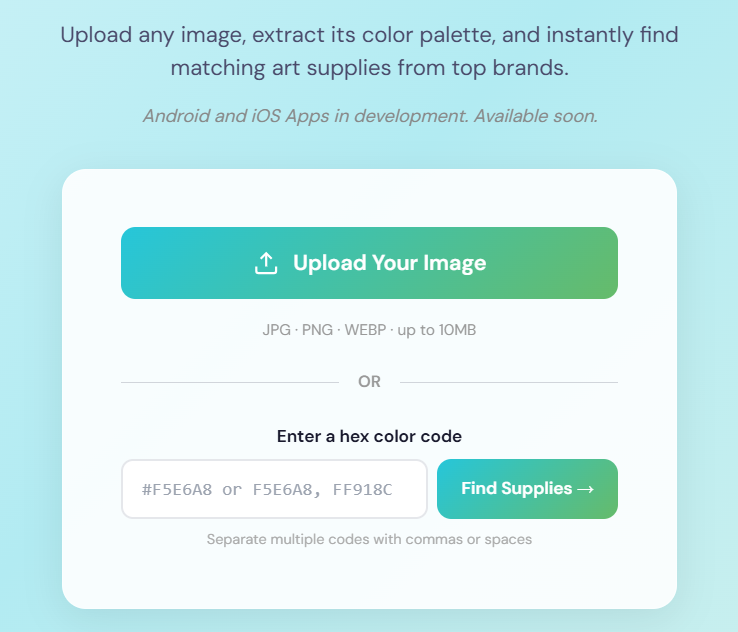
Upload an image or enter hex codes to instantly find matching art supplies across brands.
Paste your hex code (like F5E6A8), and you'll see the closest matches in your chosen brand instantly.
This works very well when:
Option 2: Work from a Tutorial Screenshot
Most of the time, tutorials don't give hex codes — they just show the finished artwork.
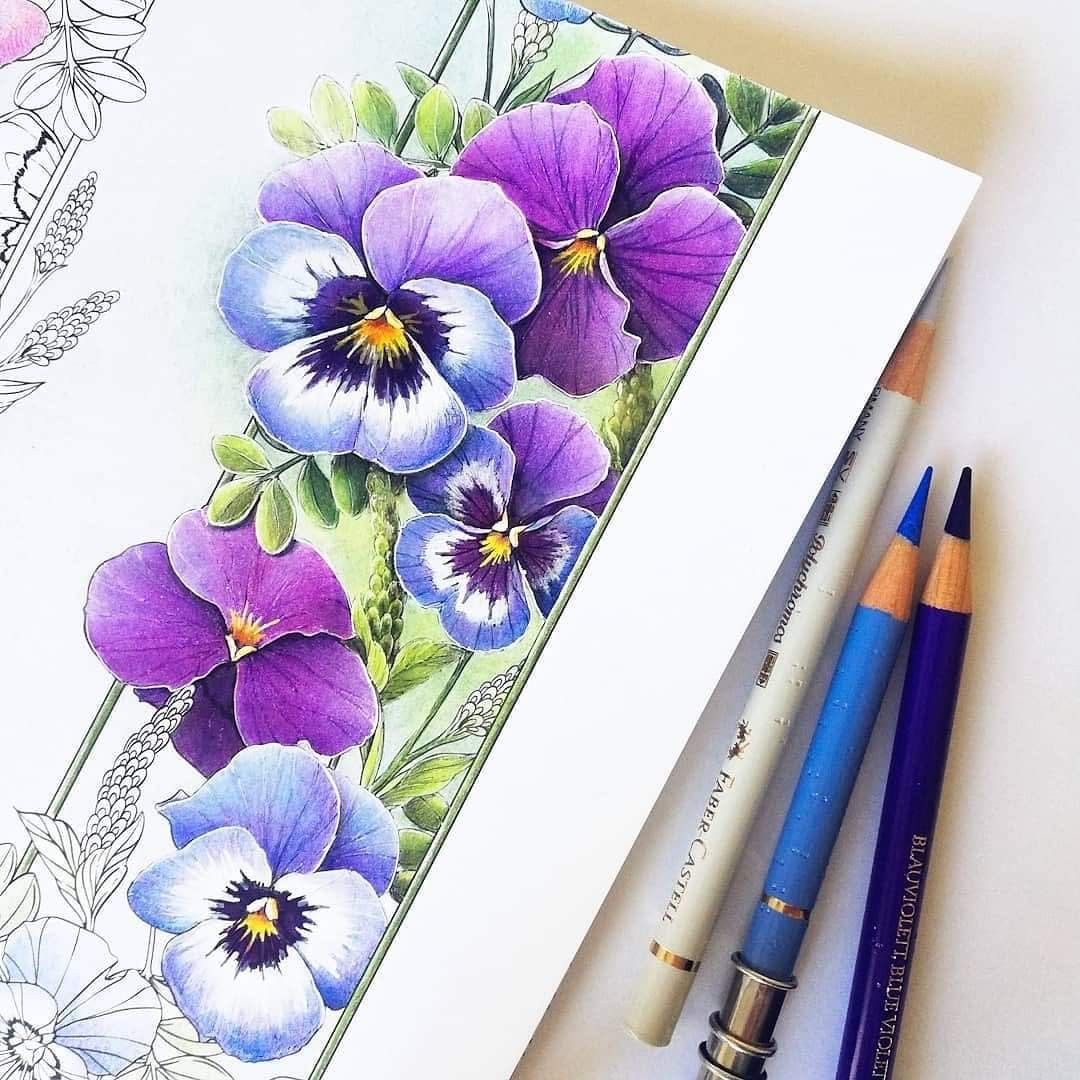
Upload an image to instantly find matching palette and art supplies across brands.
Here's what to do:
You'll see the colors extracted from those exact spots, matched to real supplies in your brand. No guessing needed.
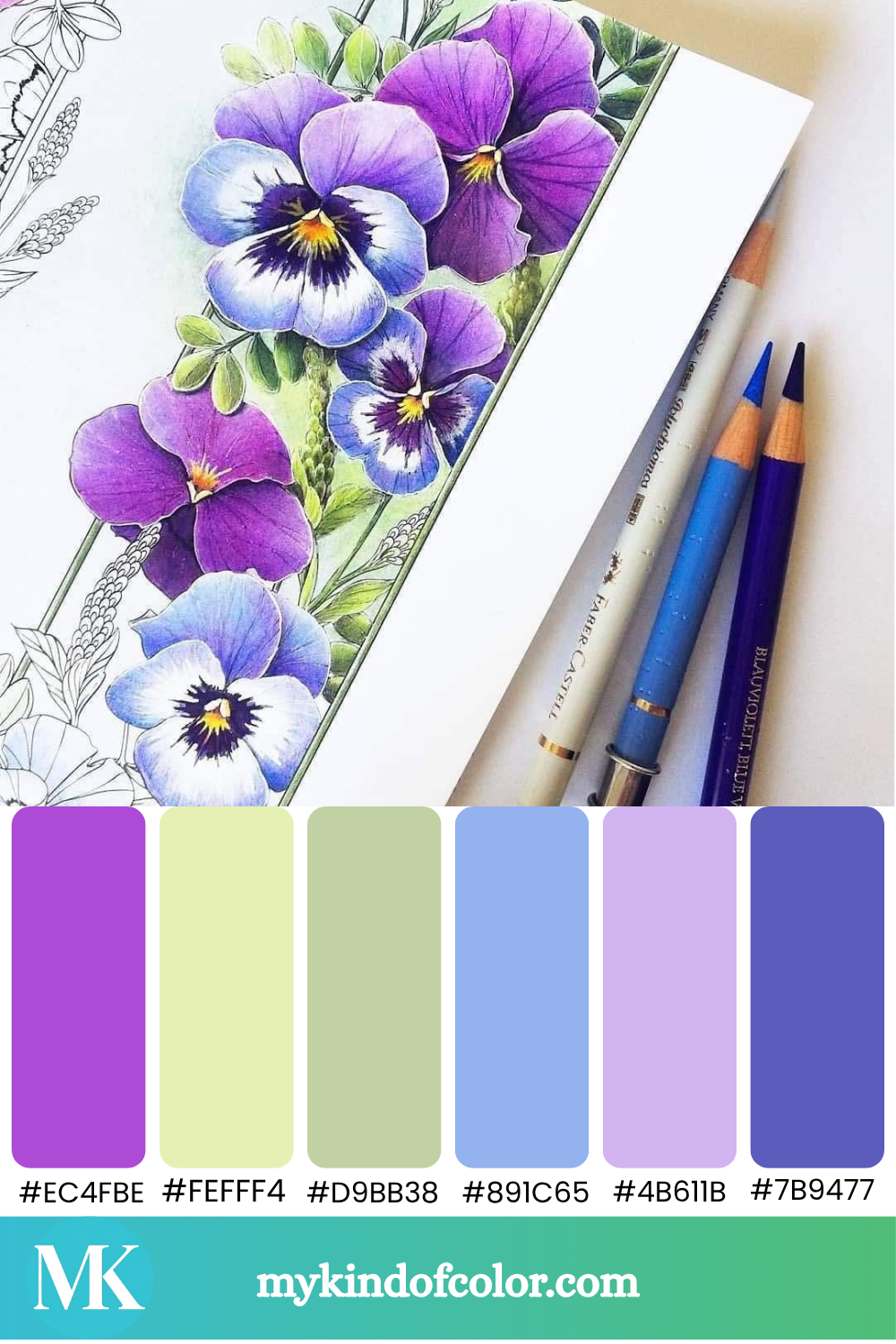
Move the markers around to pick the exact color that you want in your palette.
Why This Matters
Following a Faber-Castell tutorial with Prismacolor pencils? Upload one screenshot and you'll see the closest Prismacolor equivalent for every color the instructor used.
It works across any supported brand combination — Copic to Ohuhu, Prismacolor to Holbein, Altenew to Tim Holtz — over 3,600 individual colors in the database.
Try It Now
Head to mykindofcolor.com and upload a screenshot from your latest tutorial. You'll have your supply list in under a minute.